Google's official prompting guide for Nano-Banana, annotated
What Gemini 2.5 Flash Image (Nano-Banana) can do, the one principle behind good prompts (describe the scene, don't list keywords), and Google's example prompts for photorealistic scenes, stickers, logos, product shots, editing, inpainting, style transfer and multi-image composition.
What is Gemini Nano-Banana?
Google Gemini Nano-Banana, also known as Gemini 2.5 Flash Image, is Google’s latest multimodal model, built for generating and editing high-quality images. It combines strong language understanding with image processing, so you can create, modify and iterate on visuals through a conversational interface. It accepts text-only prompts, image-plus-text prompts and multiple input images, which gives you an unusual amount of control.
What it can do
Gemini generates and manipulates images conversationally. You can prompt it with text, images or both:
- Text to image: generate high-quality images from simple or complex descriptions.
- Image plus text to image (editing): supply an image and use text to add, remove or change elements, change the style, or adjust the colour grading.
- Multiple images to one (composition and style transfer): use several input images to compose a new scene or carry a style from one image to another.
- Iterative refinement: improve an image over several turns until it is right.
- High-fidelity text rendering: generate images with legible, well-placed text, which suits logos, diagrams and posters.
Text to image

Prompt: Create a picture of a nano banana dish in a fancy restaurant with a Gemini theme
Image plus text to image (editing)

Prompt: Create a picture of my cat eating a nano-banana in a fancy restaurant under the Gemini constellation
Gemini also supports these interaction modes:
- Text to image and text (interleaved output): generate an image with related text. For example, “Generate an illustrated recipe for paella.”
- Image plus text to image and text (interleaved output): use an input image and text to produce a new related image and text. For example, given a photo of a furnished room, “What other sofa colours would suit my space? Can you update the picture?”
- Multi-turn image editing (conversational): keep generating and editing within one conversation. For example, upload a photo of a blue car, then “Turn this car into a convertible”, then “Now make it yellow.”
Prompt templates
So how do you get the most out of Gemini 2.5 Flash Image? The single most important principle:
Describe the scene; don’t just list keywords. The model’s core strength is deep language understanding. A narrative, descriptive paragraph almost always produces a better and more coherent image than a scattered list of words.
Google’s guide gives prompt patterns for different generation and editing scenarios. Generation first.
Prompts for generating images
1. Photorealistic scenes
For realistic images, use photographic language. Camera angle, lens type, lighting and fine detail all steer the model toward a photographic result.
A photorealistic close-up portrait of an elderly Japanese ceramicist with deep, sun-etched wrinkles and a warm, knowing smile. He is carefully inspecting a freshly glazed tea bowl. The setting is his rustic, sun-drenched workshop. The scene is illuminated by soft, golden hour light streaming through a window, highlighting the fine texture of the clay. Captured with an 85mm portrait lens, resulting in a soft, blurred background (bokeh). The overall mood is serene and masterful. Vertical portrait orientation.

2. Stylised illustrations and stickers
For stickers, icons or assets, state the style explicitly and ask for a transparent or plain background.
A kawaii-style sticker of a happy red panda wearing a tiny bamboo hat. It’s munching on a green bamboo leaf. The design features bold, clean outlines, simple cel-shading, and a vibrant color palette. The background must be white.

3. Accurate text in images
Gemini is good at rendering text. Be clear about the text, the font style (descriptively) and the overall design.
Create a modern, minimalist logo for a coffee shop called ‘The Daily Grind’. The text should be in a clean, bold, sans-serif font. The design should feature a simple, stylized icon of a coffee bean seamlessly integrated with the text. The color scheme is black and white.

4. Product mock-ups and commercial photography
Ideal for clean, professional product shots for e-commerce, advertising or branding.
A high-resolution, studio-lit product photograph of a minimalist ceramic coffee mug in matte black, presented on a polished concrete surface. The lighting is a three-point softbox setup designed to create soft, diffused highlights and eliminate harsh shadows. The camera angle is a slightly elevated 45-degree shot to showcase its clean lines. Ultra-realistic, with sharp focus on the steam rising from the coffee. Square image.

5. Minimalism and negative space
Good for backgrounds that will have text placed over them, on websites, slides or marketing material.
A minimalist composition featuring a single, delicate red maple leaf positioned in the bottom-right of the frame. The background is a vast, empty off-white canvas, creating significant negative space for text. Soft, diffused lighting from the top left. Square image.

6. Sequential art (comic panels and storyboards)
Build panels for visual storytelling from consistent characters and a scene description.
A single comic book panel in a gritty, noir art style with high-contrast black and white inks. In the foreground, a detective in a trench coat stands under a flickering streetlamp, rain soaking his shoulders. In the background, the neon sign of a desolate bar reflects in a puddle. A caption box at the top reads “The city was a tough place to keep secrets.” The lighting is harsh, creating a dramatic, somber mood. Landscape.

Prompts for editing images
These examples show how to supply an image alongside a text prompt for editing, composition and style transfer.
1. Adding and removing elements
Provide an image and describe the change. The model matches the original’s style, lighting and perspective.
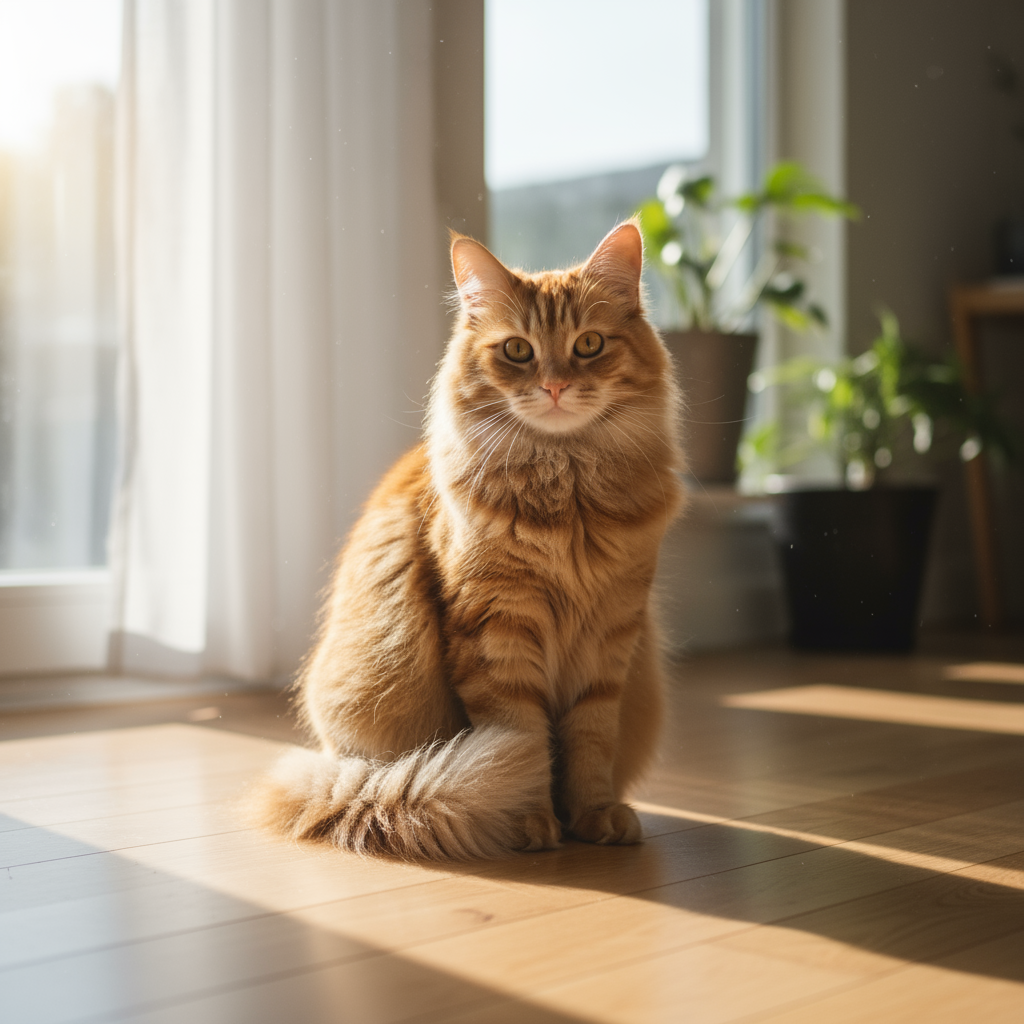
“Using the provided image of my cat, please add a small, knitted wizard hat on its head. Make it look like it’s sitting comfortably and matches the soft lighting of the photo.”

2. Inpainting (semantic masking)
Define a “mask” conversationally to edit one part of the image and leave the rest untouched.
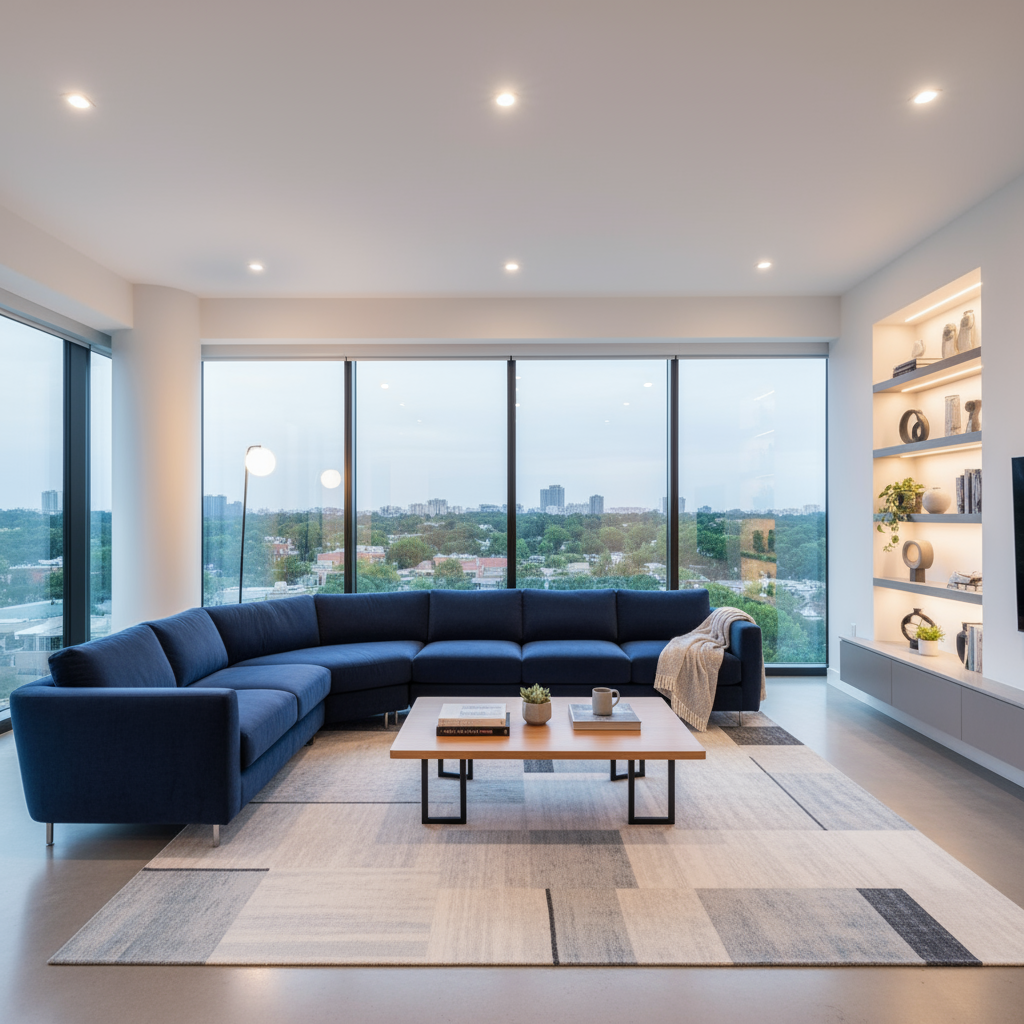
“Using the provided image of a living room, change only the blue sofa to be a vintage, brown leather chesterfield sofa. Keep the rest of the room, including the pillows on the sofa and the lighting, unchanged.”

3. Style transfer
Provide an image and ask the model to recreate its content in a different artistic style.
“Transform the provided photograph of a modern city street at night into the artistic style of Vincent van Gogh’s ‘Starry Night’. Preserve the original composition of buildings and cars, but render all elements with swirling, impasto brushstrokes and a dramatic palette of deep blues and bright yellows.”


4. Advanced composition: combining several images
Provide several images as context to compose a new scene. Well suited to product mock-ups and creative collages.
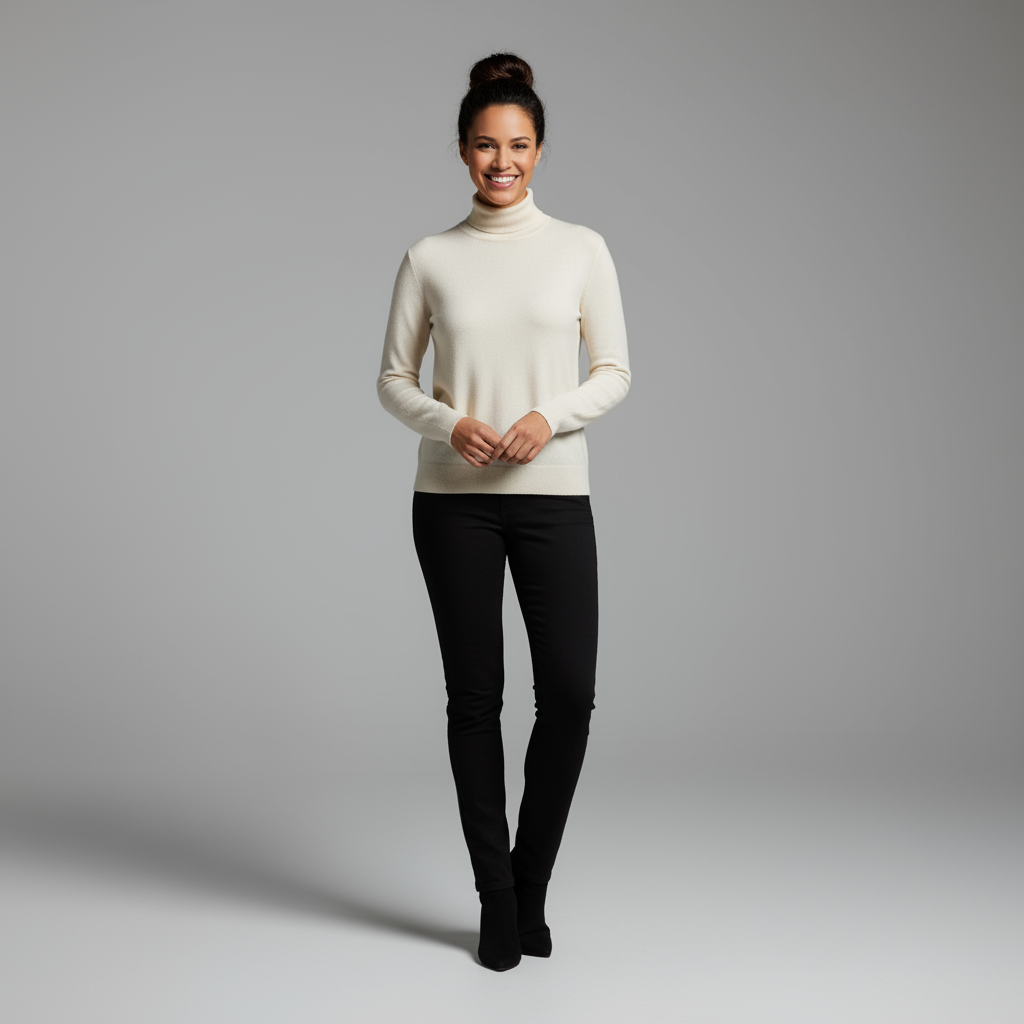
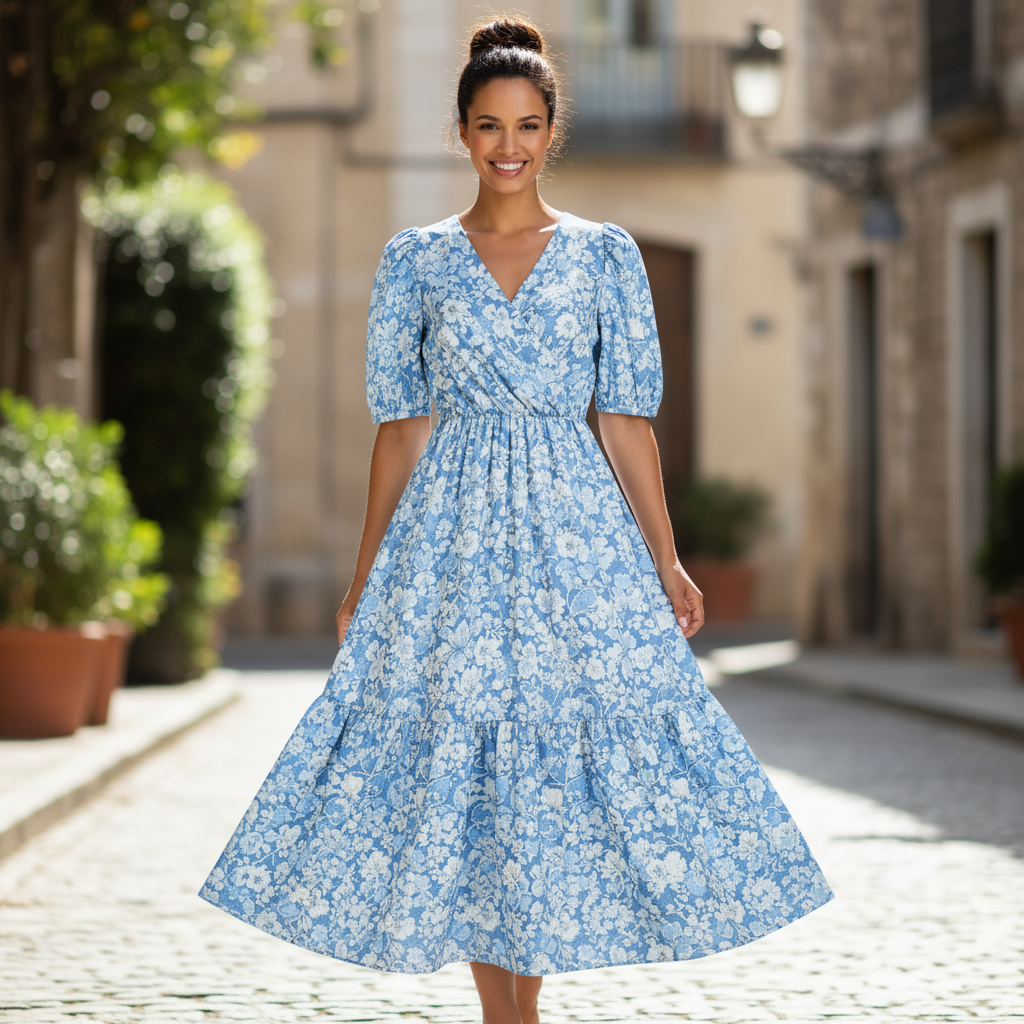
“Create a professional e-commerce fashion photo. Take the blue floral dress from the first image and let the woman from the second image wear it. Generate a realistic, full-body shot of the woman wearing the dress, with the lighting and shadows adjusted to match the outdoor environment.”

5. Preserving fine detail
To keep critical details such as a face or a logo intact through an edit, describe them explicitly in the request.
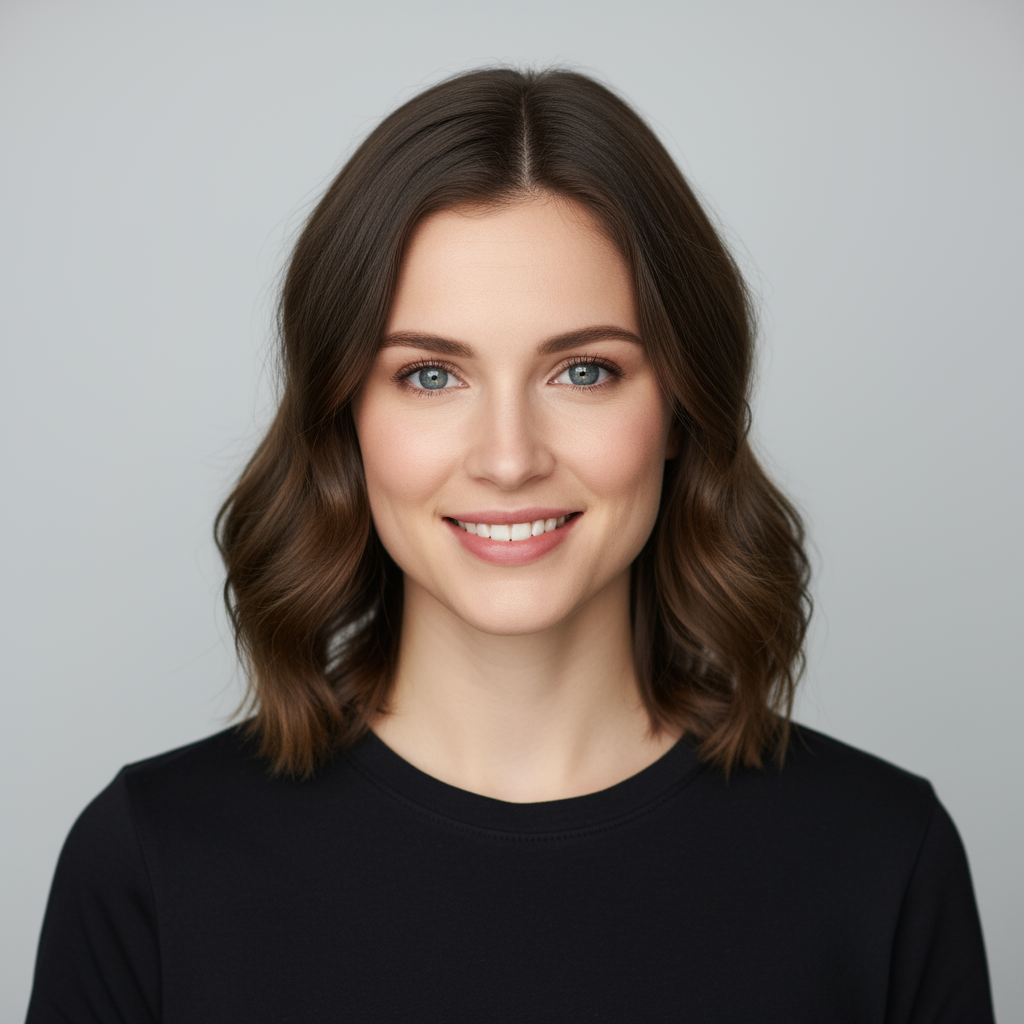
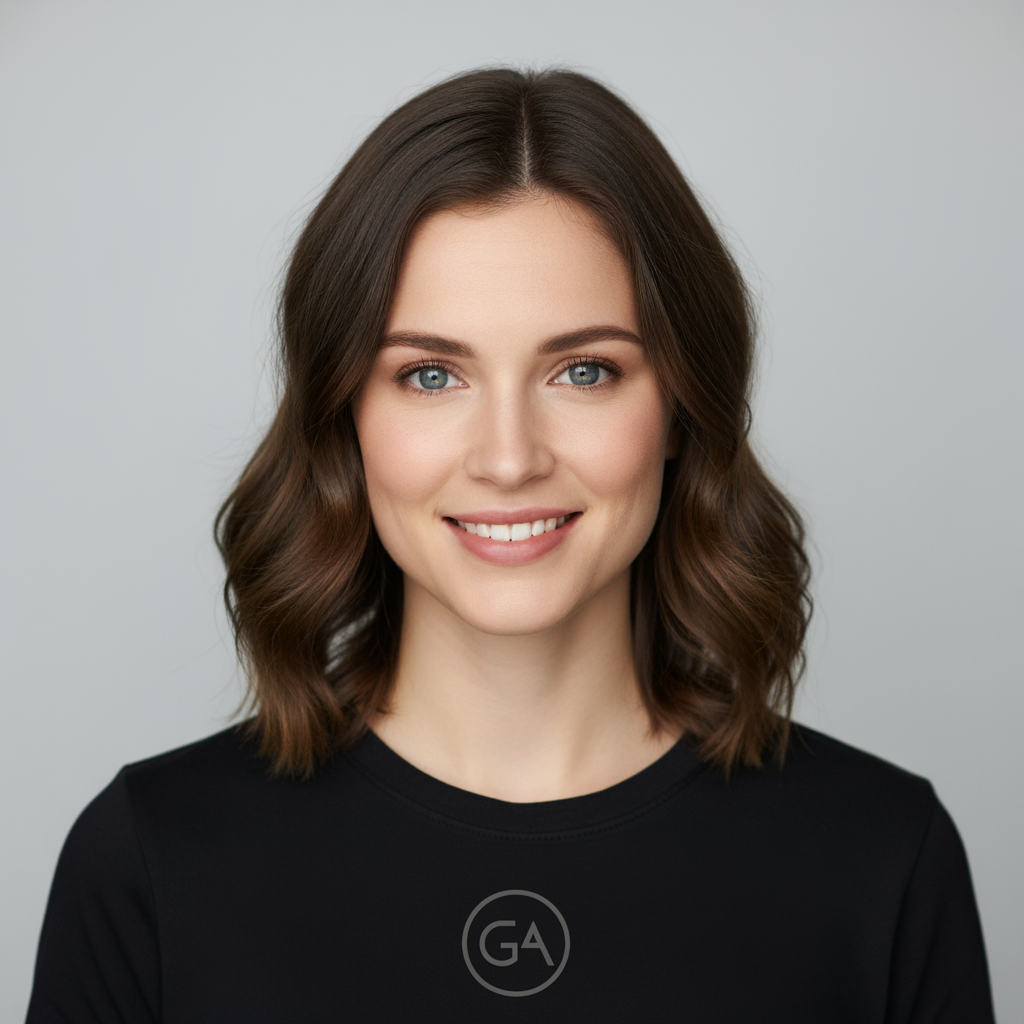
“Take the first image of the woman with brown hair, blue eyes, and a neutral expression. Add the logo from the second image onto her black t-shirt. Ensure the woman’s face and features remain completely unchanged. The logo should look like it’s naturally printed on the fabric, following the folds of the shirt.”

Best practices
To move results from good to excellent, fold these into your workflow:
- Be specific. More detail means more control. Instead of “fantasy armour”, write “ornate elven plate armour etched with silver leaf patterns, with a high collar and pauldrons shaped like falcon wings.”
- Give context and intent. Explain what the image is for. “Create a logo for a high-end, minimalist skincare brand” beats “create a logo”.
- Iterate. Don’t expect perfection on the first try. Use the conversational ability to refine: “That’s great, but can the lighting be a bit warmer?” or “Keep everything the same but make the expression more serious.”
- Use step-by-step instructions. For complex scenes, break the prompt into stages. “First, create a calm, misty forest at dawn. Then add a moss-covered stone altar in the foreground. Finally, place a glowing sword on the altar.”
- Use semantic negatives. Instead of “no cars”, describe the scene you want: “an empty, deserted street with no sign of traffic.”
- Control the camera. Use photographic and cinematic language for composition: wide-angle shot, macro shot, low-angle perspective.
Limitations
- Best results in these languages: EN, es-MX, ja-JP, zh-CN, hi-IN.
- Image generation does not accept audio or video input.
- The model does not always produce exactly the number of images requested.
- It works best with up to three input images.
- When generating text inside an image, results are best if you generate the text first, then ask for an image containing it.
- Uploading images of children is currently not supported in the EEA, Switzerland and the UK.
- All generated images carry a SynthID watermark.
The prompts above are Google’s own examples; the commentary is mine. 中文版.